Integrating Tools
Learn about integrating tools and how to implement it effectively.
Integrating Tools
Tools are essential components in InnoSynth-Forjinn that empower your AI workflows and agents to interact with external systems, fetch real-time data, perform calculations, and execute specific actions beyond their inherent language generation capabilities. This guide explains how to integrate and use tools in your chatflows and agents.
What are Tools?
Tools are specialized components that encapsulate a specific functionality, such as:
- Search Engines: Google Search, SerpApi, Brave Search.
- Databases: PostgreSQL, MySQL, MongoDB query tools.
- Web Scraping: FireCrawl, custom web scrapers.
- Calculators: For mathematical operations.
- APIs: Custom API calls, GitHub API, Jira API.
- File Operations: Reading from or writing to files.
By providing agents with access to tools, you enable them to perform tasks that require up-to-date information or interaction with external services.
How to Integrate Tools
Tools are integrated into your chatflows and agents as components on the canvas.
In Chatflows:
- Drag Tool Component: From the left-hand components library, find the "Tools" category and drag the desired tool (e.g., "Google Search") onto your canvas.
- Connect to LLM/Agent: Connect the output of a component (like a Prompt Template or another LLM) that provides the necessary input for the tool to the tool's input port.
- Configure Tool:
- Select the tool component on the canvas.
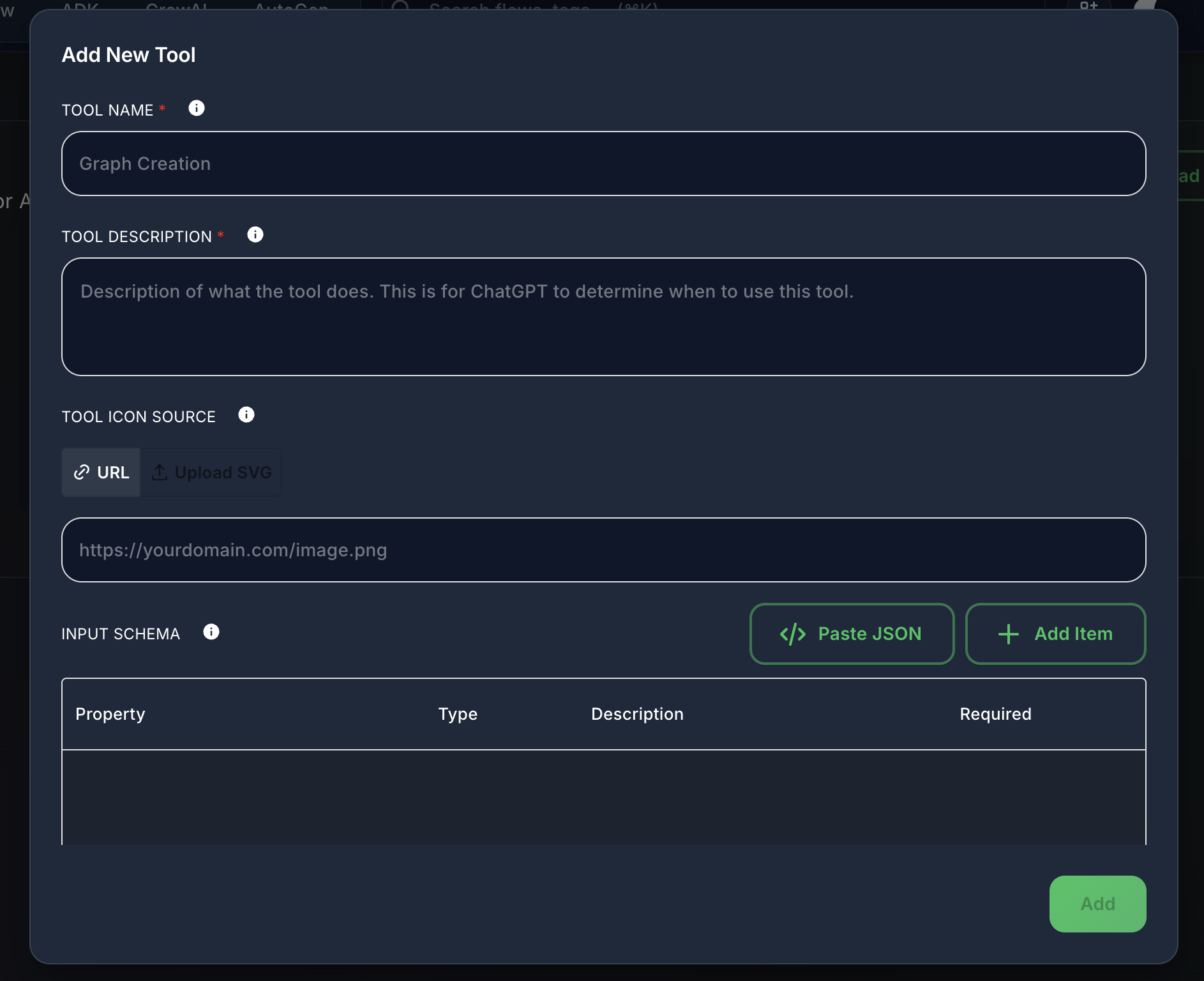
- In the right-hand configuration panel, provide any required parameters for the tool. This often includes:
- Credentials: Select the appropriate Credential (e.g., Google Search API Key) if the tool requires authentication.
- Input Parameters: Define how the tool will receive its input (e.g., a search query, a database command). This might involve using variables from previous components.
- Connect Tool Output: Connect the output of the tool to the next component in your chatflow, such as an LLM that will process the tool's results.
In Agents:
When creating an agent, you explicitly provide it with a list of tools it can use. The agent's LLM "brain" then decides when and how to use these tools based on its reasoning.
- Access Agent Builder: Navigate to the "Agents" section and either create a new agent or edit an existing one.
- Add Tools Section: In the agent configuration, there will be a section to "Add Tools."
- Select and Configure: Choose the tools you want your agent to have access to from the available list. Configure each tool with its necessary credentials and parameters, similar to how you would in a chatflow.
- Agent's Decision: The agent's LLM will then use its reasoning capabilities to determine which tool is appropriate for a given task and how to formulate the input for that tool.
Example: Using a Search Tool in a Chatflow
- Drag
Prompt Templateto canvas (e.g., "What is the capital of {{country}}?"). - Drag
Google Searchtool to canvas. - Drag
OpenAI Chat Modelto canvas. - Connect
Prompt Templateoutput toGoogle Searchinput (passing{{country}}as the query). - Connect
Google Searchoutput toOpenAI Chat Modelinput (the search results become context for the LLM). - Connect
OpenAI Chat Modeloutput toChat Output. - Configure
Google Searchwith your Google Search API Key.
Now, when you ask "What is the capital of France?", the chatflow will use Google Search to find the answer and then use the LLM to formulate a response.
For a list of commonly available tools, refer to available tools.