Adding Credentials
Learn about adding credentials and how to implement it effectively.
Adding Credentials
Credentials are essential for connecting InnoSynth-Forjinn to external AI models, tools, and services. This guide explains how to securely add and configure your API keys and authentication details.
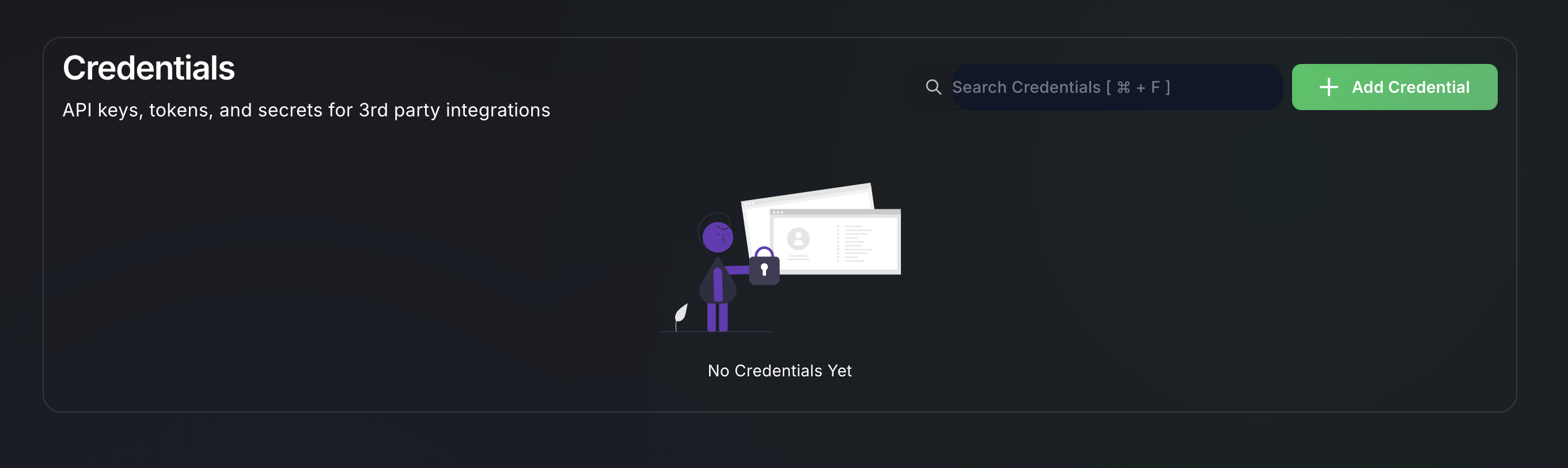
What are Credentials?
Credentials are sensitive pieces of information (like API keys, access tokens, or usernames/passwords) that allow InnoSynth-Forjinn to authenticate with third-party services on your behalf. By centralizing credential management, InnoSynth-Forjinn helps you keep your sensitive data secure and easily reusable across multiple chatflows and agents.
Accessing the Credentials Manager
- Navigate to Credentials: From the left-hand sidebar, click on "Credentials".
- You will see a list of your existing credentials, if any.
Steps to Add New Credentials
- Click "Add New": Look for a button like "Add New" or "Create New Credential".
- Choose Credential Type: A dialog or page will appear, prompting you to select the type of credential you want to add. InnoSynth-Forjinn supports a wide range of services. Examples include:
- OpenAI API Key: For connecting to OpenAI models.
- Anthropic API Key: For connecting to Anthropic models.
- Google Search API Key: For using Google Search as a tool.
- HTTP Basic Auth: For services requiring a username and password.
- HTTP Bearer Token: For services requiring a bearer token.
- Custom API Key: For generic API keys.
- Fill in Details:
- Once you select a credential type, specific fields will appear.
- Name: Give your credential a descriptive name (e.g., "My OpenAI Key," "Project X Google Search").
- API Key/Token/Secret: Carefully paste or type the actual sensitive value (e.g., your OpenAI API key). Ensure there are no leading/trailing spaces.
- Other Fields: Depending on the credential type, you might need to provide additional information like endpoint URLs, client IDs, client secrets, or scopes for OAuth2.
- Save Credential: Click the "Save" or "Create" button to securely store your new credential.
Security Best Practices
- Never Share API Keys Publicly: Treat your API keys like passwords. Do not hardcode them in public repositories or expose them in client-side code.
- Use Environment Variables: If you are developing locally, use environment variables to store your keys.
- Least Privilege: Only grant the necessary permissions to the API keys you use.
- Rotate Keys: Regularly rotate your API keys, especially if you suspect they might have been compromised.
Once added, your credentials will be available for selection when configuring LLM components, tools, or other integrations within your chatflows and agents.