Saving Deploying
Learn about saving deploying and how to implement it effectively.
Saving and Deploying Chatflows
Once you have designed your AI workflow on the InnoSynth-Forjinn canvas, the next crucial steps are saving your work and deploying it for use. This guide covers how to save your chatflows and make them accessible.
Saving Your Chatflow
It's important to save your chatflow regularly to avoid losing your progress.
-
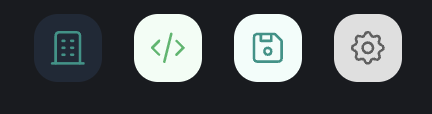
Save Button: Look for a "Save" button, typically located at the top right or bottom of the chatflow builder interface.
-
Naming Your Chatflow: When saving for the first time, you will be prompted to give your chatflow a unique and descriptive name. Choose a name that reflects its purpose or functionality.
-
Auto-Save (if available): Some platforms may offer an auto-save feature, but it's always best practice to manually save your work, especially after significant changes.
Deploying Your Chatflow
Deploying a chatflow makes it active and ready to receive inputs. The deployment process in InnoSynth-Forjinn typically involves making the chatflow accessible via an API endpoint or embedding it into a web application.
1. Activating the Chatflow
After saving, your chatflow might need to be explicitly "activated" or "deployed." This often involves a toggle or a "Deploy" button.
- Status Indicator: Once deployed, your chatflow's status will usually change to "Active" or "Deployed" in the Chatflows list.
2. Accessing the Chatflow
Deployed chatflows can typically be accessed in a few ways:
- Direct Chat Interface: The chat interface within the InnoSynth-Forjinn platform allows you to interact with your deployed chatflow directly for testing and immediate use.
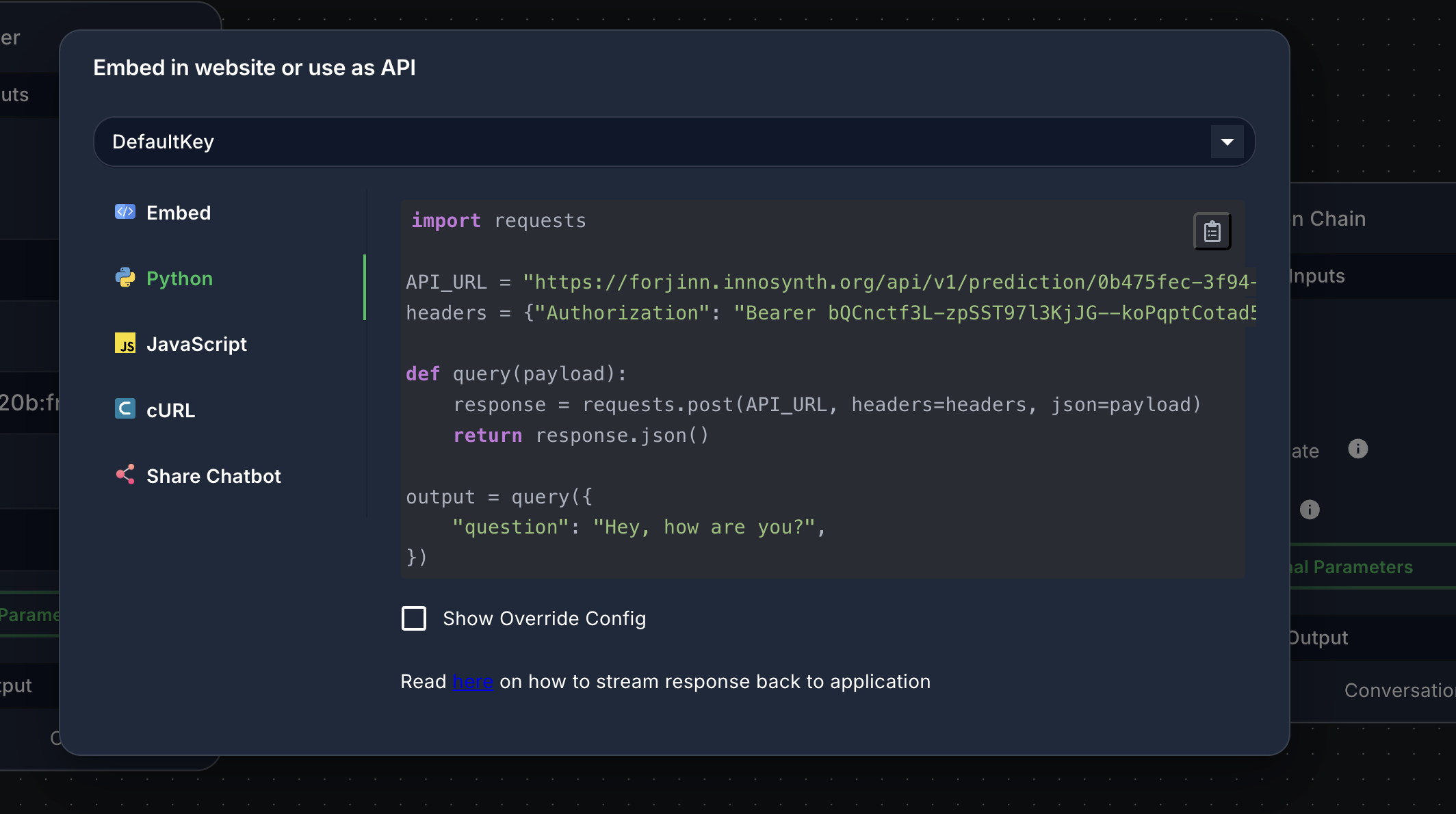
- API Endpoint: Each deployed chatflow usually exposes a unique API endpoint. You can integrate this endpoint into your custom applications, websites, or other services to send inputs and receive responses programmatically.
- You can often find the API endpoint details (URL, required headers, authentication) in the chatflow's settings or details page.
- Embedding: InnoSynth-Forjinn might provide options to embed your chatflow directly into your website or application using a snippet of code (e.g., an iframe or a JavaScript widget).
3. Versioning and Rollback (Advanced)
For more complex scenarios, InnoSynth-Forjinn may offer:
- Versioning: The ability to save different versions of your chatflow, allowing you to revert to previous states if needed.
- Rollback: The option to quickly switch back to a previously deployed version of a chatflow.
Always ensure your chatflow is saved and deployed correctly before expecting it to function in external applications or for end-users.