Overview
Learn about overview and how to implement it effectively.
Dashboard Overview
The InnoSynth-Forjinn Dashboard is the first page you see after logging in. It provides a centralized overview of your activities, deployed chatflows, and key metrics, helping you quickly understand the status of your AI projects.
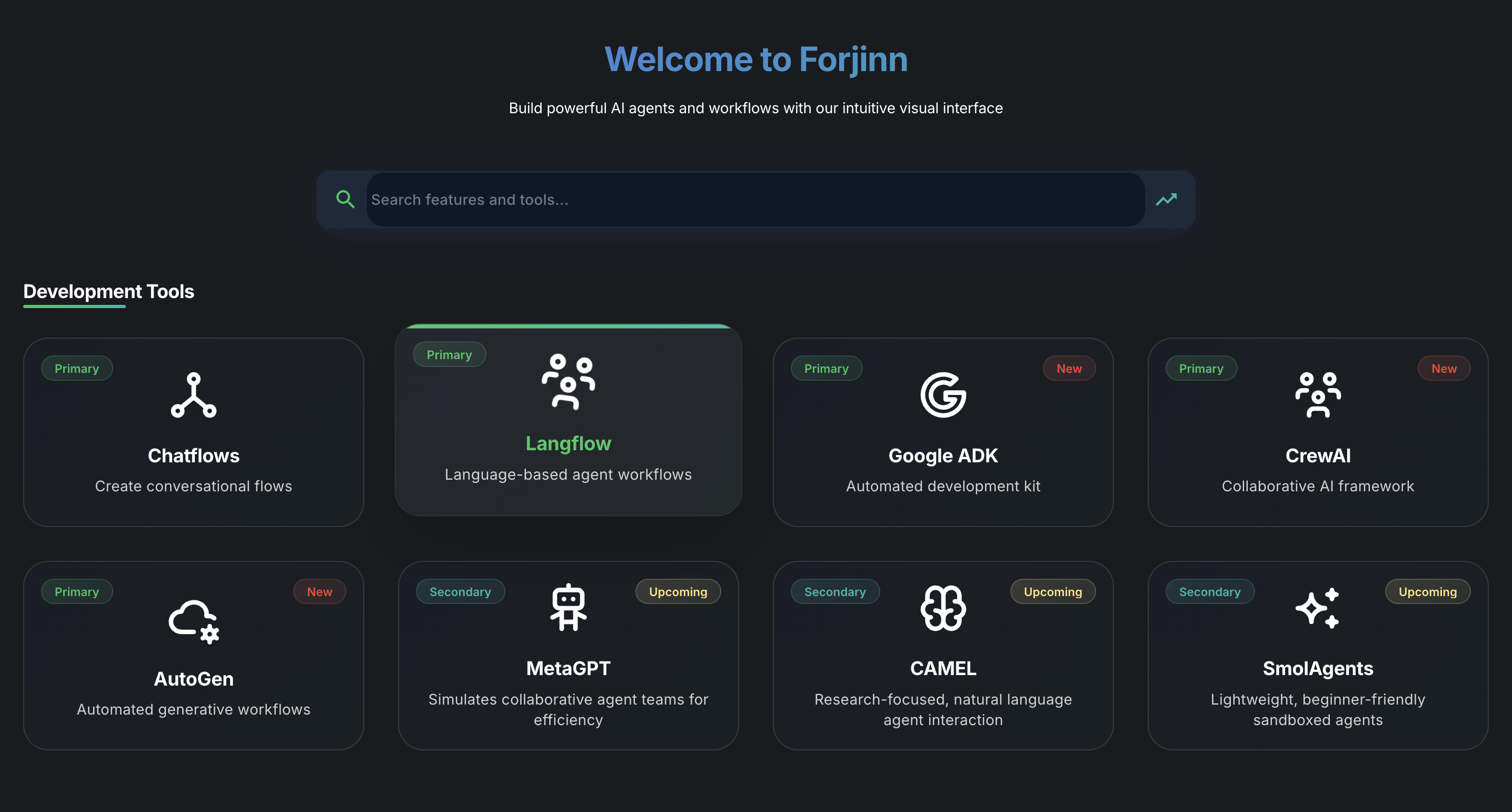
Key Sections of the Dashboard
The dashboard is typically organized into several sections, each providing valuable information:
-
Welcome Message/User Profile:
- Often displays a personalized welcome message and quick access to your user profile or account settings.
-
Quick Access/Navigation:
- Provides shortcuts to frequently used sections like "Create New Chatflow," "View All Chatflows," or "Manage Credentials."
-
recent activities/Logs:
- Shows a chronological list of your recent interactions, chatflow executions, or system events. This helps you keep track of what's been happening on your account.
- (Refer to recent activities for more details)
-
Deployed Chatflows/Projects Summary:
- Displays a summary of your active or recently deployed chatflows. This might include their status (running, stopped), number of executions, or performance metrics.
- Quick links to view or edit specific chatflows are usually available here.
-
Resource Usage (Optional):
- Depending on your platform configuration, you might see information about your resource consumption, such as API call limits, storage usage, or active agents.
-
Announcements/Notifications:
- Important updates, new features, or system maintenance notifications from the InnoSynth-Forjinn team.
Navigating from the Dashboard
From the Dashboard, you can easily navigate to other parts of the application using the main sidebar menu on the left. This menu provides access to:
- Chatflows: To build and manage your AI workflows.
- Agents: To create and oversee intelligent agents.
- Credentials: To configure your API keys and external service connections.
- Tools: To integrate various functionalities into your workflows.
- Marketplace: To explore and import community templates.
- Settings: To adjust platform configurations.
- User & Role Management: (For Administrators) To manage user access.
The Dashboard is designed to be your command center, offering a snapshot of your AI operations and guiding you to where you need to go next.