
Account Settings
Configure your Forjinn account settings including profile, workspace, notifications, and billing preferences.
Account Settings
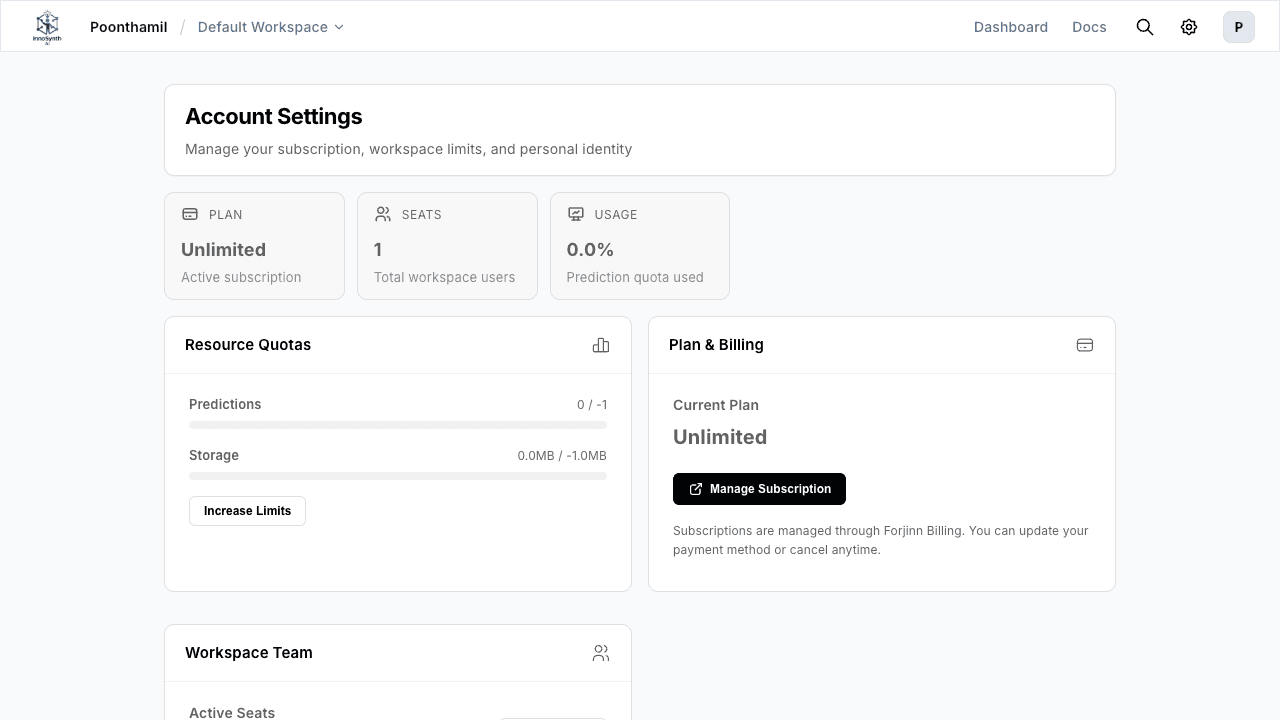
The Account Settings page in Forjinn provides a centralized place to manage your profile, workspace preferences, notification settings, and billing access.
Accessing Account Settings
- Click on your avatar or initials at the top-right of the sidebar.
- Select Account Settings from the dropdown menu.
Profile
The Profile section allows you to manage your personal information:
- Display Name: Update the name shown across the platform to other users and in logs.
- Email: Your primary contact email. May be read-only if managed via SSO.
- Avatar: Upload or change your profile picture.
- Bio: Add a short description that other workspace members can see.
Click Edit to make changes, then Save to apply them.
Workspace Selection
This section shows the workspaces you are a member of and allows you to switch between them:
- Current Workspace: Indicates the workspace you're actively using.
- Switch Workspace: Select from the list of workspaces you have access to.
- Workspace Role: Shows your role within each workspace (e.g., Owner, Editor, Viewer).
Switching workspaces changes the context for your chatflows, agentflows, credentials, and other resources.
Notification Preferences
Control how and when you receive notifications from the platform:
- Email Notifications: Toggle email alerts for events such as flow deployments, execution failures, and workspace invitations.
- In-App Notifications: Enable or disable notifications within the Forjinn UI.
- Digest Frequency: Choose between real-time alerts or a daily/weekly summary.
- Execution Alerts: Get notified when a chatflow or agentflow execution fails or exceeds duration thresholds.
Billing Access
If you have billing permissions on your workspace or organization:
- View Plan: See your current subscription plan and usage details.
- Manage Billing: Navigate to the Billing page to update payment methods, view invoices, and manage seats.
- Usage Overview: Check token consumption, flow executions, and storage usage against your plan limits.
Billing options are available only to users with Admin or Owner roles on the workspace.
Security
Account security options available from the settings page:
- Change Password: Update your login password. Not available if your account uses SSO authentication.
- Two-Factor Authentication (2FA): Enable app-based or SMS two-factor authentication for an additional layer of security.
- Active Sessions: View currently active sessions and remotely log out devices if needed.
Saving Changes
After modifying any section, click Save or Update to persist your changes. Some settings (like workspace switching) take effect immediately without requiring a save action.
Troubleshooting
- Can't edit email? Your account may be managed through SSO. Contact your organization administrator.
- 2FA not working? Ensure your device's time is synchronized. Regenerate the setup code if needed.
- Don't see expected workspaces? You may need to be invited by a workspace owner. Request access through your organization admin.