
Billing
Manage your Forjinn subscription, payment methods, invoices, and usage from the billing settings page.
Billing
The Billing page in Forjinn provides visibility into your subscription plan, usage metrics, payment details, and billing history. It is the central place for managing all financial aspects of your workspace or organization.
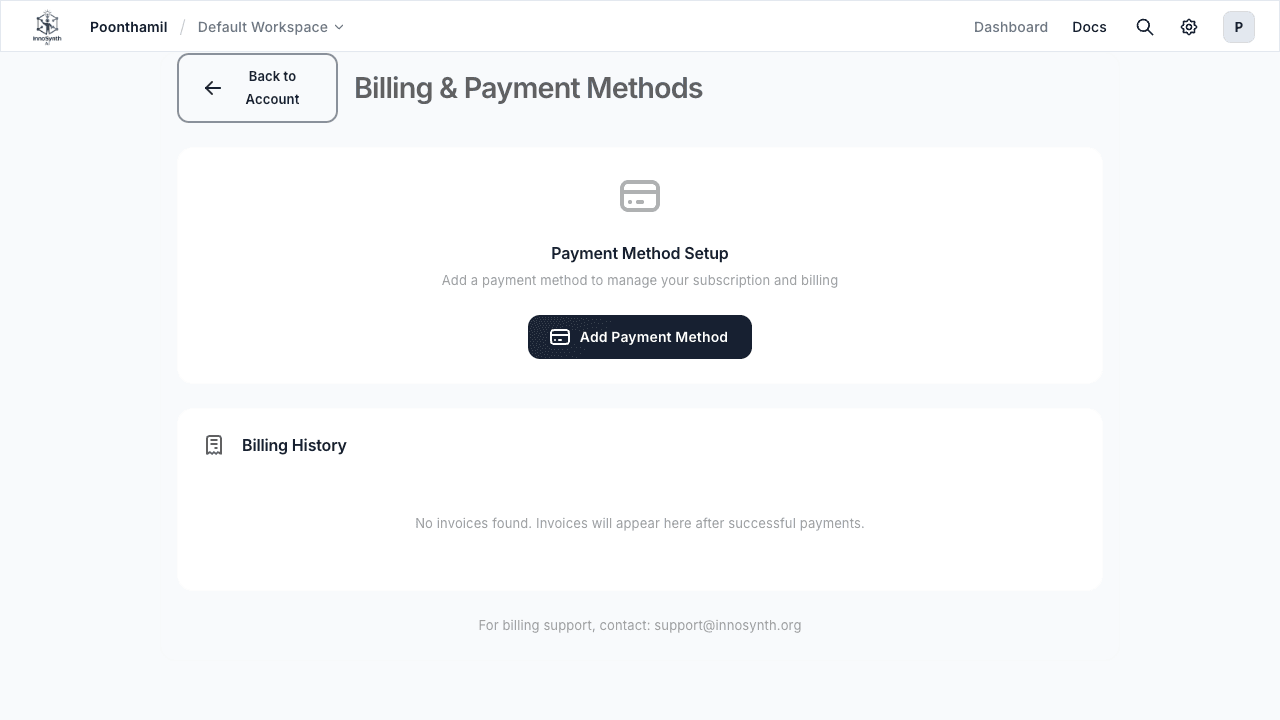
Accessing Billing
- Navigate to Settings from the left-hand sidebar.
- Click on Billing to open the billing management page.
Note: Access to the Billing page requires Admin or Owner role on the workspace or organization.
Current Plan
The Current Plan section displays your active subscription details:
- Plan Name: Your current tier (e.g., Free, Starter, Pro, Enterprise).
- Billing Cycle: Monthly or annual billing frequency.
- Next Billing Date: When the next charge will occur.
- Seats Included: Number of user seats covered by your plan.
- Usage Limits: Token quotas, execution limits, and storage allowances for your plan tier.
Usage Overview
The usage section provides real-time and historical metrics:
- Token Usage: Total LLM tokens consumed across all chatflows and agentflows.
- Executions: Number of flow runs completed.
- Storage: Disk space used for documents, datasets, and uploaded files.
- API Calls: Number of external API requests made through credentials and tools.
- Active Users: Count of team members currently using the platform.
Usage is tracked per billing cycle. A visual graph shows consumption trends over time.
Payment Methods
Manage how you pay for your subscription:
- Add Payment Method: Enter a credit card or connect a payment service. All transactions are processed through a PCI-compliant payment gateway.
- Update Card Details: Change expiration date, billing address, or switch to a different card.
- Remove Payment Method: Delete an unused card. At least one active payment method is required for paid plans.
Invoices and Billing History
Access a complete record of past charges:
- Invoice List: Download individual PDF invoices for any billing period.
- Charge Details: See per-item breakdowns including base subscription, overage charges, and add-on fees.
- Rebilling: View and download receipts for refunds or credit adjustments.
- Export: Download the full billing history as a CSV file for accounting purposes.
Managing Seats
If your plan is seat-based:
- Add Seats: Purchase additional user seats directly from the billing page. Charges are prorated for the remaining billing cycle.
- Remove Seats: Reduce the number of paid seats. Take effect at the next billing cycle. Ensure you don't drop below the number of active users.
- Transfer Seats: In enterprise plans, reallocate seats between workspaces within the same organization.
Upgrading and Downgrading Plans
- Upgrade: Select a higher-tier plan from the billing page. The difference is prorated and charged immediately. New features and limits are available instantly.
- Downgrade: Switch to a lower-tier plan. The change takes effect at the start of the next billing cycle. You'll retain access to higher-tier features until the cycle ends.
- Cancel Subscription: End your paid plan. Access continues until the end of the current billing period, after which the account reverts to the Free tier.
Promo Codes and Credits
- Apply Promo Code: Enter a discount or trial code in the billing settings to receive credit or a reduced rate.
- View Balance: Check remaining promotional or pre-paid credits on your account.
Troubleshooting
- Card declined: Verify that the card has sufficient funds and isn't blocked by your bank. Update expiration details if the card was reissued.
- Invoice missing: Check the billing cycle date — invoices are generated at the start of each period. Contact support if an expected invoice doesn't appear.
- Usage discrepancy: Refresh the usage dashboard. If readings still seem incorrect, export the raw usage data and compare with execution logs.
- Seat limit reached: Add seats from the billing page or remove inactive users before inviting new team members.
Best Practices
- Monitor usage weekly: Keep an eye on token consumption and execution counts to avoid unexpected overage charges.
- Set up billing alerts: Where available, configure notifications for when usage approaches plan thresholds.
- Clean up unused resources: Archive or delete old chatflows, agentflows, and credentials to reduce storage and execution costs.
- Reconcile invoices regularly: Export billing history and match it against internal financial records for compliance.
Forjinn API Keys Management | External Access & Integration
Manage API keys for external access to Forjinn Visual AI Agent Builder. Secure integration setup for applications, websites, and backend systems.
Account Settings
Configure your Forjinn account settings including profile, workspace, notifications, and billing preferences.