
Quick Start Guide - Forjinn AI Agent Platform
Get started with Forjinn AI platform. Learn to use the Chat Builder, Visual Canvas, and tile-based dashboard to create AI agents and workflows in minutes.
Quick Start Guide
Welcome to InnoSynth-Forjinn! This guide will help you get started quickly and create your first AI workflow using our modern platform.
Video Tutorial: Build Your First AI Chatbot
Learn how to build your first AI chatbot in under 5 minutes with no coding required
1. Access the Platform
Navigate to https://forjinn.com to access the InnoSynth-Forjinn platform. You will be presented with a branded sign-in page featuring email, phone, and SSO options.
2. Sign In or Create an Account
Enter your email and password to sign in. If you don't have an account, click the Sign Up tab and register with your name, email, and password. Enterprise users can also sign in via SSO, phone number, or email OTP.
3. Choose Your Builder Mode
After logging in, you'll land on the builder selection page. Forjinn offers two ways to build AI workflows:
- Chat Builder (Recommended): A conversational AI guide where you describe what you want to build using natural language. Perfect for ideation, rapid prototyping, and guided configuration.
- Visual Canvas: A node-based, drag-and-drop editor for advanced users who need full control over complex flow logic and variable mapping.
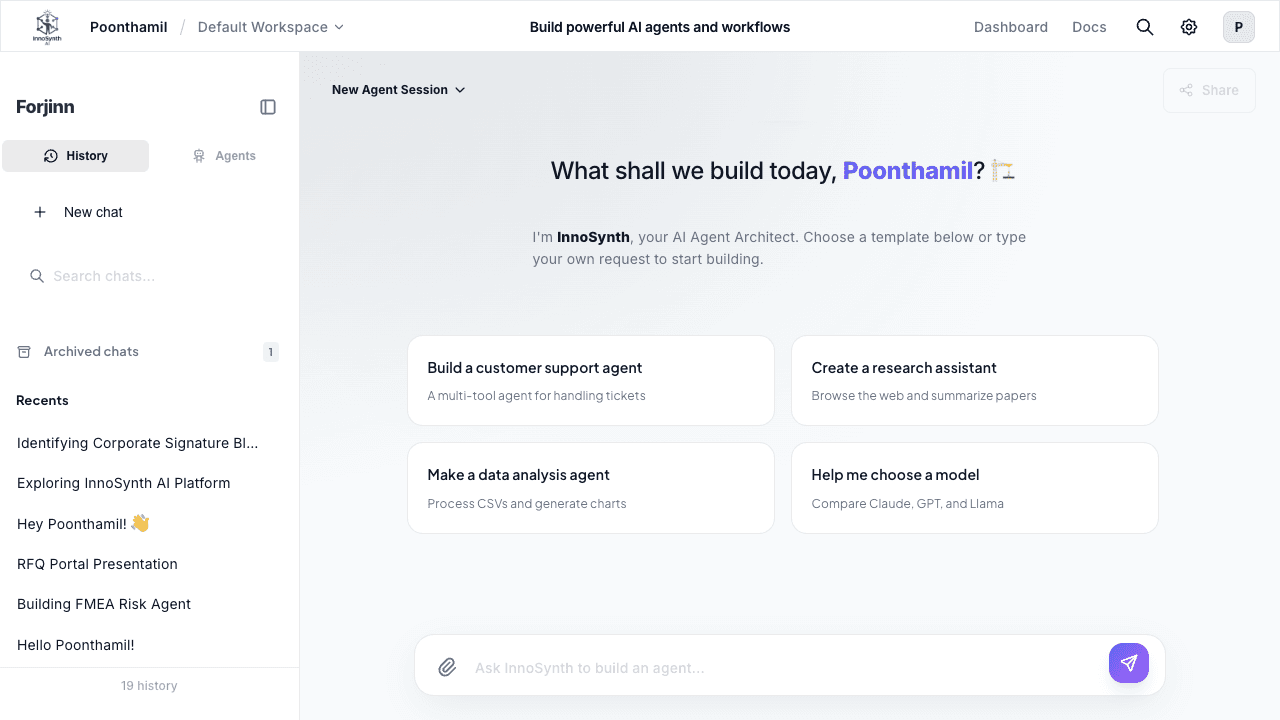
Getting Started with Chat Builder
The Chat Builder greets you with: "What shall we build today? I'm InnoSynth, your AI Agent Architect." Simply type a description of what you want to build, and the AI will guide you through setup with smart template suggestions like:
- Customer support agent
- Research assistant
- Data analysis agent
- Model comparison
The Chat Builder features a conversational AI guide, step-by-step setup, smart tool suggestions, and a real-time chat preview panel.
Using the Visual Canvas
Select Visual Canvas for a traditional drag-and-drop, node-based workflow editor. This mode gives you full control over complex branching logic, advanced variable mapping, and精细 flow configuration.
4. Explore the Dashboard
The dashboard at /app/visual uses a tile-based layout organized into four categories:
Development Tools
Access your AI building frameworks and tools:
- Langflow (Primary) — Visual LangChain workflow builder
- API Gateway (New) — Manage and route API requests
- Google ADK (New) — Google's AI Developer Kit integration
- CrewAI (New) — Multi-agent orchestration framework
- AutoGen (New) — Microsoft's conversational agent framework
- Chatflows (Primary) — Build visual chat workflows
- MetaGPT (Upcoming) — Multi-agent software engineering
- CAMEL (Upcoming) — Communicative agent framework
- SmolAgents (Upcoming) — Lightweight agent library
User Management
- Cloud Admin, Users, Roles, Workspaces, Login Activity
Security
- Credentials, API Keys, SSO Config
Settings
- Executions, Assistants, Marketplaces, Tools, Triggers, Variables, Document Stores, Logs, Account Settings, Datasets, Evaluators, Evaluations
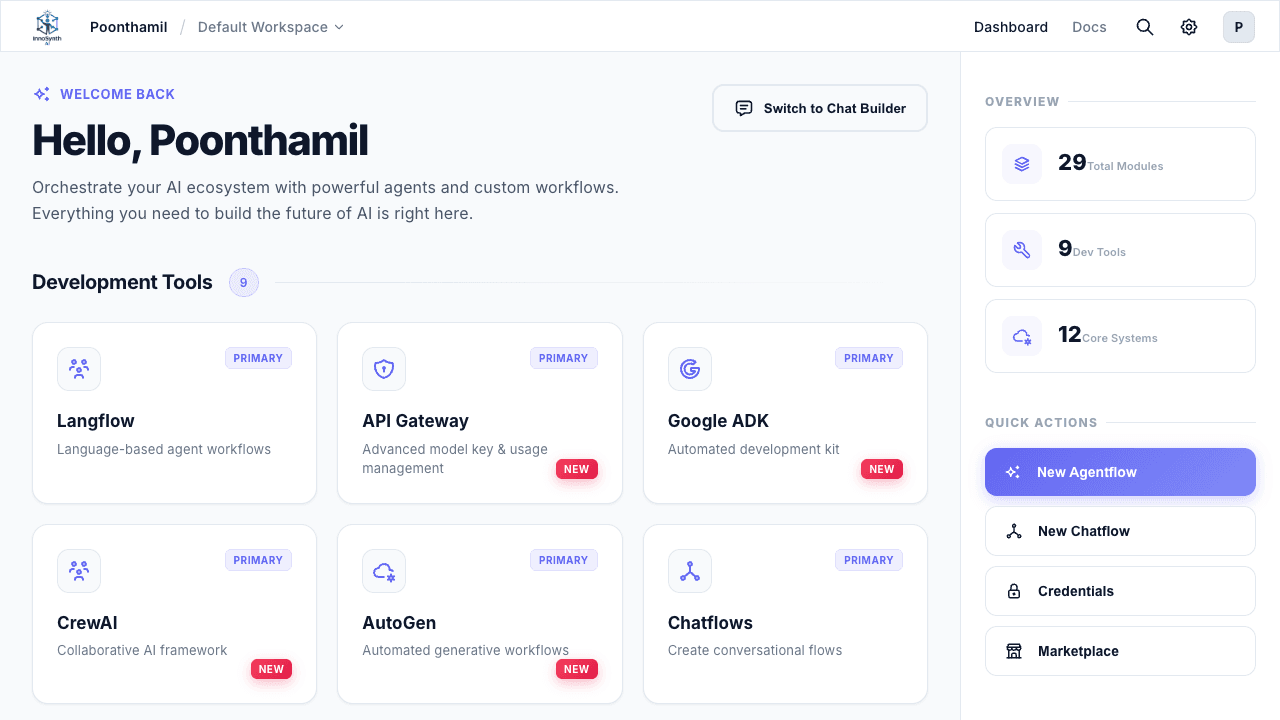
Right Sidebar
The dashboard sidebar shows three sections:
- Overview: Key stats including 29 Total Modules, 9 Dev Tools, 12 Core Systems
- Quick Actions: New Agentflow, New Chatflow, Credentials, Marketplace
- Recent Activity: Chronological list of your most recent flows with timestamps
Top Bar
The top bar displays the Forjinn logo, workspace name, Dashboard / Docs tab switcher, Search Apps, Settings gear icon, and your user profile.
5. Create Your First Workflow
Using Chat Builder
- Select Chat Builder from the builder selection page (or click "Switch to Chat Builder" from the dashboard).
- Describe what you want to build in plain language (e.g., "Build me a customer support agent that answers FAQs").
- Choose from the AI-suggested templates or continue with a custom description.
- Follow the guided step-by-step setup to configure your agent.
- Test your workflow using the real-time chat preview panel.
Using Visual Canvas
- Navigate to Chatflows from the Development Tools section, or click "New Chatflow" under Quick Actions.
- Drag and Drop Components:
- On the left panel, find a library of nodes. Drag an "LLM" node (e.g., OpenAI, Anthropic) onto the canvas.
- Drag a "Prompt Template" node onto the canvas.
- Connect the output of the Prompt Template to the input of the LLM by dragging a line between their connection points.
- Drag a "Chat Output" node and connect it to the LLM's output.
- Configure Nodes:
- Click on each node on the canvas to open its configuration panel on the right.
- For the LLM node, select your desired AI model and provide any necessary API keys (managed under "Credentials").
- For the Prompt Template, define the instructions and variables for your AI.
- Save and Test:
- Click the "Save" button to save your chatflow.
- Use the chat preview interface to test your newly created AI workflow.
6. Navigate Between Views
- Switch between Dashboard and Docs tabs using the toggle in the top bar.
- Return to the Chat Builder from the dashboard by clicking the "Switch to Chat Builder" button in the welcome area.
- Use the Docs tab to access platform documentation directly alongside your workspace.
7. Next Steps
You've successfully explored the Forjinn platform! Now you can:
- Explore more development tools in the dashboard tile layout.
- Learn about Agents for more complex multi-agent tasks.
- Manage your Credentials for various AI services.
- Browse the Marketplace for pre-built templates and flows.
- Integrate new frameworks like Langflow, Google ADK, CrewAI, and AutoGen.
Enjoy building with InnoSynth-Forjinn!
What Is Forjinn? Visual AI Agent Builder
Forjinn lets you build, deploy, and manage AI agents and chatflows visually — connecting LLMs, tools, and data without writing code.
Logging In to Forjinn - Sign In, Sign Up, and SSO
Learn how to log in to InnoSynth-Forjinn. Sign in with email, phone, OTP, or enterprise SSO. Create a new account and access the AI agent builder platform.