
Logging In to Forjinn - Sign In, Sign Up, and SSO
Learn how to log in to InnoSynth-Forjinn. Sign in with email, phone, OTP, or enterprise SSO. Create a new account and access the AI agent builder platform.
Logging In to InnoSynth-Forjinn
This guide explains how to access and log in to your InnoSynth-Forjinn account.
Accessing the Login Page
Open your web browser and navigate to https://forjinn.com/signin to access the sign-in page.
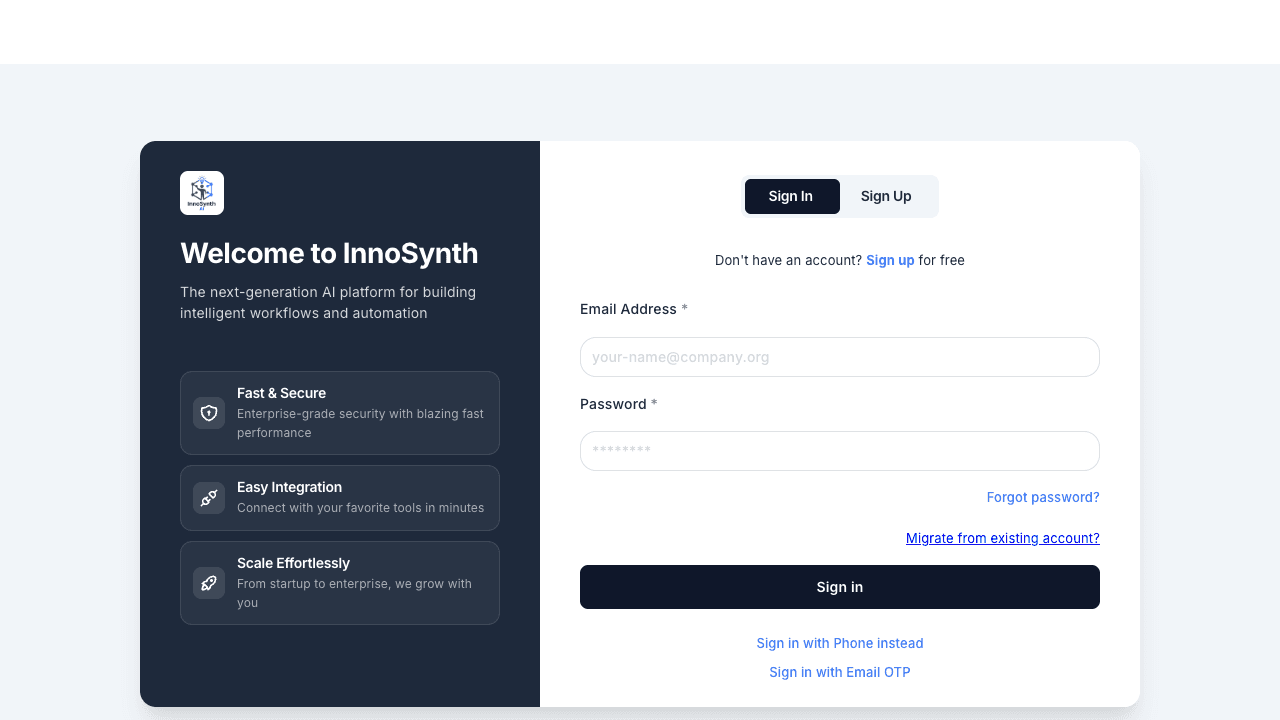
The Forjinn login page features InnoSynth branding with a clean, modern layout. The left side showcases three feature highlights — Fast & Secure, Easy Integration, and Scale Effortlessly — while the right side contains the sign-in form.
Signing In
The sign-in page offers multiple ways to access your account:
- Email & Password — Enter your email address and password, then click Sign In.
- Phone Number — Click "Sign in with Phone instead" to authenticate using your phone number.
- Email OTP — Click "Sign in with Email OTP" to receive a one-time password via email for passwordless access.
- SSO — Enterprise users with SSO Config enabled can sign in through their organization's identity provider.
Forgot Your Password?
Click the "Forgot password?" link below the password field and follow the instructions to reset your password via email.
Migrating from Another Platform
If you have an existing account on another platform, click "Migrate from existing account?" to transfer your data and configuration to Forjinn.
Creating a New Account
If you don't have an account, you can register directly from the login page:
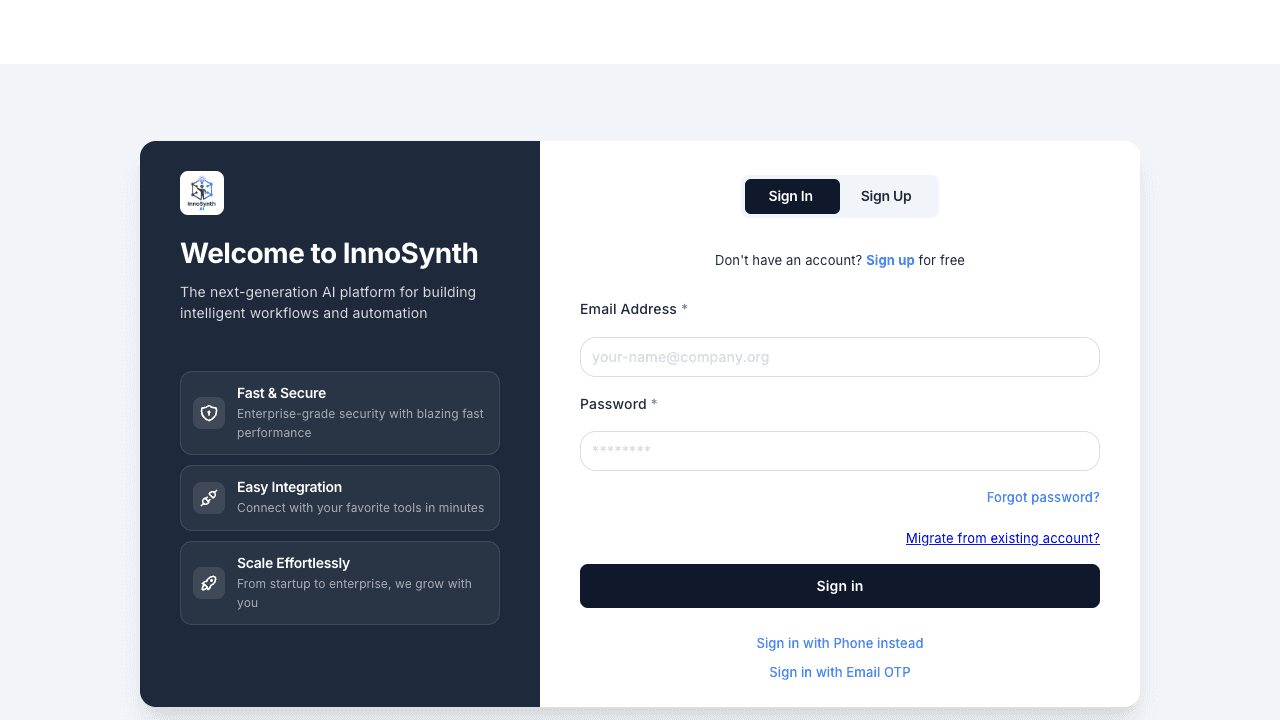
- Click the "Sign Up" tab at the top of the form.
- Fill in the registration fields:
- Name — Your full name
- Email — A valid email address
- Password — A secure password
- Confirm Password — Re-enter your password to confirm
- Click Sign Up to create your account.
Alternatively, click "Don't have an account? Sign up for free" at the bottom of the Sign In form to switch to the registration view.
Enterprise SSO Access
For organizations using single sign-on, Forjinn supports enterprise SSO through the SSO Config module under the Security section of the dashboard. Your IT administrator can configure SSO integration using standard protocols. Once configured, enterprise users will see an SSO sign-in option on the login page.
Troubleshooting Login Issues
- Incorrect Credentials: If you receive an error, double-check your email address and password for typos. Passwords are case-sensitive.
- Forgot Password: Use the "Forgot password?" link to receive a password reset email.
- Account Locked: If your account becomes locked after multiple failed attempts, wait for the lockout period to expire or contact your administrator.
- SSO Issues: If you expect to log in via SSO but don't see the option, contact your IT administrator to verify that SSO Config has been set up for your organization.
- Migration Problems: If the "Migrate from existing account?" flow fails, contact support with your previous platform details for manual assistance.
After Logging In
Upon successful login, you'll be presented with the builder selection page, where you can choose between:
- Chat Builder (Recommended) — A conversational AI guide for rapid prototyping
- Visual Canvas — A node-based drag-and-drop editor for advanced workflows
From there, you'll navigate to the tile-based dashboard at /app/visual, where you can access Development Tools, User Management, Security settings, and more.
Quick Start Guide - Forjinn AI Agent Platform
Get started with Forjinn AI platform. Learn to use the Chat Builder, Visual Canvas, and tile-based dashboard to create AI agents and workflows in minutes.
Forjinn AI Builder Overview - Chat Builder and Visual Canvas
Complete overview of Forjinn's dual-mode AI builder. Use Chat Builder for conversational AI setup or Visual Canvas for drag-and-drop node-based workflow creation. Explore the tile-based dashboard with Development Tools, Security, and Settings.