
Recent Activities & Dashboard
Overview of the Recent Activities section, Quick Actions, Overview Stats, and navigation tabs on the Forjinn Dashboard.
Recent Activities & Dashboard
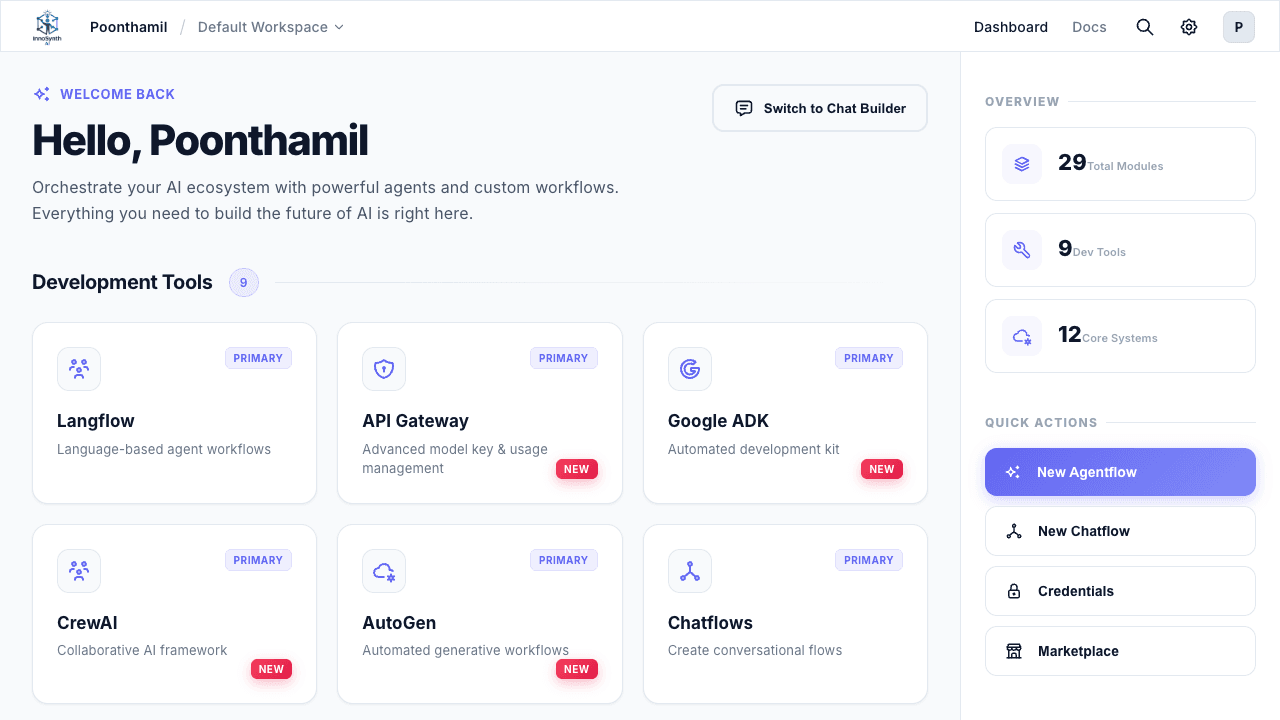
The Forjinn Dashboard is your central command center after logging in. It provides quick access to your recent flows, key metrics, and shortcuts for common actions.
Top Navigation Tabs
The dashboard features two view modes accessible via tabs at the top:
- Dashboard — The default list-based view showing Recent Activities, Overview Stats, and Quick Actions.
- Docs — Switches to the internal documentation portal, providing access to guides, references, and help resources.
Recent Activities
The Recent Activities panel displays a chronological list of your most recently accessed or modified flows. Each entry shows:
- Flow Icon — A distinct icon representing the flow type (e.g., Langflow, Chatflow, or other workflow kinds).
- Flow Name — The display name of the flow.
- Timestamp — Relative time since last activity (e.g., "3 minutes ago", "21 minutes ago", "17 days ago", "19 days ago").
Each entry is clickable. Selecting a flow navigates you directly to that flow's editor or detail page, allowing you to resume work immediately.
How to Use Recent Activities
- Resume Work — Click any entry to jump straight to the corresponding flow.
- Monitor Access Patterns — See which flows you've interacted with most recently to track your workflow history.
- Quick Identification — The flow icon helps you distinguish between different flow types at a glance, such as Langflow-based agent workflows versus conversational Chatflows.
Overview Stats
The Overview Stats section provides a high-level summary of your workspace:
- Total Modules — The combined count of all modules in your workspace (e.g., 29 Total Modules).
- Dev Tools — The number of developer tools available or in use (e.g., 9 Dev Tools).
- Core Systems — The count of core system components deployed (e.g., 12 Core Systems).
These stats give you an instant snapshot of the scale and composition of your AI infrastructure.
Quick Actions
The Quick Actions panel provides one-click shortcuts for common tasks:
- New Agentflow — Creates a new Langflow-based agent workflow. Use this to build multi-step autonomous agents with tool integrations.
- New Chatflow — Creates a new conversational flow. Use this to build chatbot-style interactions with linear or branching conversation paths.
- Credentials — Quick jump to the credential management page, where you can add, view, or edit API keys and service connections.
- Marketplace — Opens the template marketplace, where you can browse and import community-built flow templates to kickstart your projects.
Forjinn Dashboard Overview - Tile-Based Module Navigation
Complete guide to the Forjinn dashboard. Navigate Development Tools, User Management, Security, and Settings tiles. Use Quick Actions, Overview stats, and Recent Activity in the sidebar.
Forjinn Components Guide Overview | AI Agent Builder
Explore Forjinn's component-based architecture. Build AI agents and workflows visually across multiple builder modes including Chat Builder, Langflow, Google ADK, CrewAI, AutoGen, and more.