
Forjinn Dashboard Overview - Tile-Based Module Navigation
Complete guide to the Forjinn dashboard. Navigate Development Tools, User Management, Security, and Settings tiles. Use Quick Actions, Overview stats, and Recent Activity in the sidebar.
Dashboard Overview
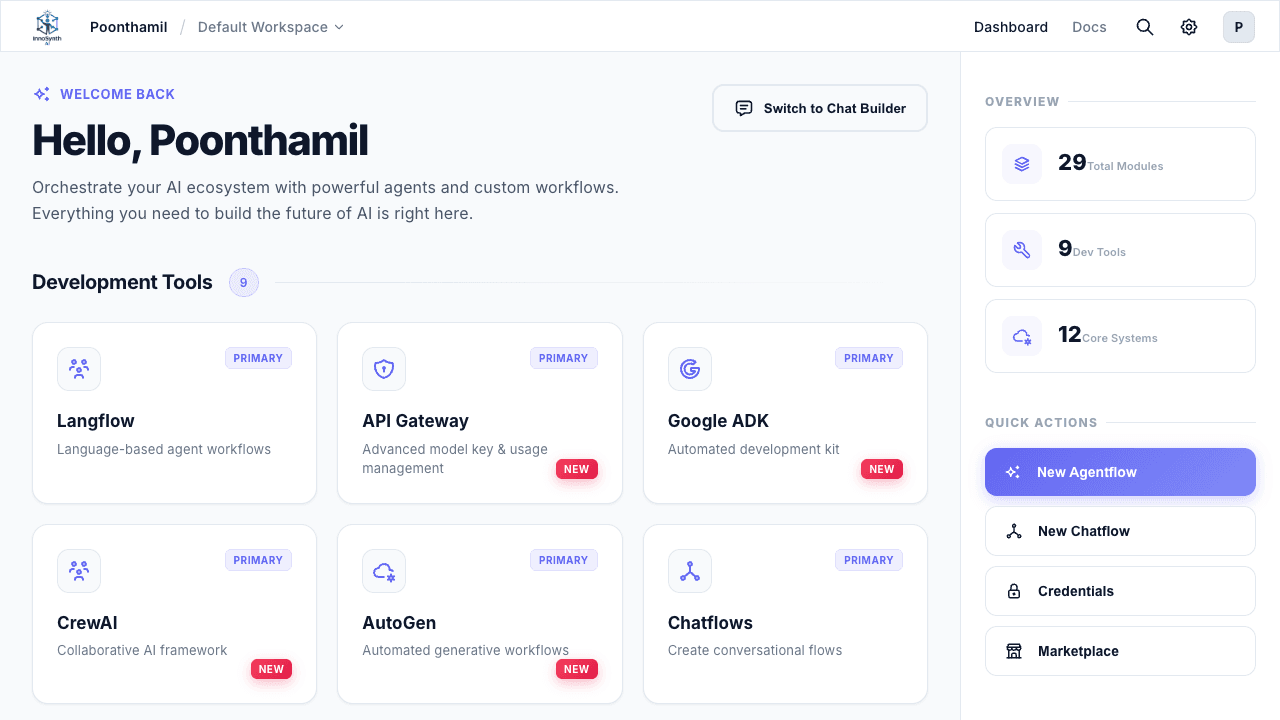
The dashboard is the command center of InnoSynth-Forjinn. Located at /app/visual, it provides a tile-based layout organized into categories, making it easy to find and launch any module in the platform.
Page Layout
The dashboard is divided into three main areas:
- Top Navigation Bar — Logo, workspace name, view tabs, search, and user profile
- Main Content Area (Left) — Welcome section and categorized tile grid
- Sidebar (Right) — Overview stats, Quick Actions, and Recent Activity
Top Navigation Bar
The top bar spans the full width of the page and contains:
| Element | Description |
|---|---|
| Forjinn Logo | Links to the platform home |
| Workspace Name | Displays the currently active workspace |
| Dashboard Tab | Shows the tile-based dashboard view (default) |
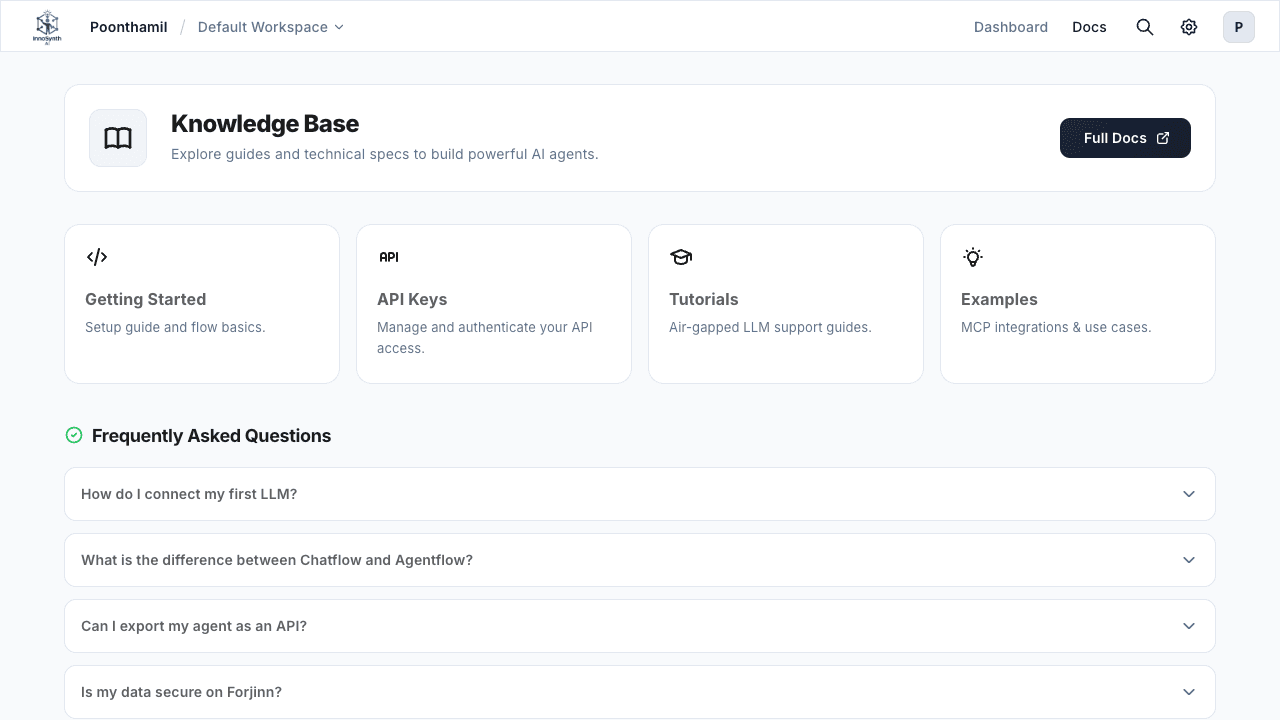
| Docs Tab | Switches to integrated platform documentation |
| Search Apps | Full-text search across all modules and tools |
| Settings Gear | Quick access to account and platform settings |
| User Profile | Account menu with sign-out option |
Dashboard vs. Docs Tabs
Use the tab switcher to toggle between the main dashboard and the Docs view. The Dashboard tab shows your tile-based module grid, while the Docs tab opens integrated platform documentation so you can reference guides without leaving the application.
Main Content Area
Welcome Section
At the top of the page, you'll see a personalized welcome message:
Hello, [Your Name] Orchestrate your AI ecosystem with powerful agents and custom workflows
A "Switch to Chat Builder" button appears in the top right of the welcome area, providing one-click access to the conversational AI builder mode.
Module Tiles
Below the welcome section, modules are organized into four categorized tile groups. Each tile displays an icon, name, and status badge.
Development Tools
The Development Tools section provides access to AI frameworks and building tools. This is where you'll spend most of your time creating workflows.
| Module | Status | Description |
|---|---|---|
| Langflow | Primary | Visual workflow builder for LangChain applications |
| API Gateway | New | Manage and route API requests across services |
| Google ADK | New | Google AI Developer Kit integration |
| CrewAI | New | Multi-agent orchestration framework |
| AutoGen | New | Microsoft's customizable agentic AI framework |
| Chatflows | Primary | Visual chat workflow builder |
| MetaGPT | Upcoming | Multi-agent software engineering framework |
| CAMEL | Upcoming | Communicative agent machine learning framework |
| SmolAgents | Upcoming | Lightweight agent library |
Module Status Badges:
- Primary — Fully available and production-ready
- New — Recently added to the platform, fully functional
- Upcoming — Planned for future release, not yet available
User Management
Tools for platform administration and team management:
| Module | Description |
|---|---|
| Cloud Admin | Central administration panel |
| Users | User account creation and management |
| Roles | Role-based access control configuration |
| Workspaces | Workspace and team organization |
| Login Activity | Sign-in logs and activity monitoring |
Security
Credential and access management:
| Module | Description |
|---|---|
| Credentials | API key and secret storage for third-party services |
| API Keys | Platform-specific key generation, management, and revocation |
| SSO Config | Enterprise single sign-on setup and configuration |
Settings
Core platform configuration and management tools:
| Module | Description |
|---|---|
| Executions | Workflow execution history and monitoring |
| Assistants | AI assistant configuration |
| Marketplaces | Browse and import pre-built templates |
| Tools | Custom tool integration and registration |
| Triggers | Event-based workflow automation |
| Variables | Global and per-workflow variable management |
| Document Stores | Knowledge base and document storage |
| Logs | System and execution log viewer |
| Account Settings | User profile, preferences, and notifications |
| Datasets | Training and evaluation data management |
| Evaluators | AI output evaluation tools and benchmarks |
| Evaluations | Evaluation results, history, and analytics |
Right Sidebar
The sidebar on the right side of the dashboard provides three quick-access panels.
Overview Stats
Summary of your platform's module inventory:
- 29 Total Modules — Combined count of all available tools and settings
- 9 Dev Tools — AI development frameworks in the Development Tools section
- 12 Core Systems — Settings and management modules
Quick Actions
One-click shortcuts to frequently used tasks:
| Action | Description |
|---|---|
| New Agentflow | Create a new agent-based workflow |
| New Chatflow | Create a new interactive chat workflow |
| Credentials | Jump to credential management |
| Marketplace | Open the template and component marketplace |
Recent Activity
A chronological feed of your most recent workflows, showing:
- Flow name
- Type (Agentflow or Chatflow)
- Timestamp of last modification or execution
This provides quick access to workflows you've been actively working on.
Navigating from the Dashboard
Opening a Module
Click any tile to open that module. For example:
- Click Langflow to open the visual workflow canvas
- Click Credentials to manage API keys and secrets
- Click Users to view and manage team members
- Click Marketplace to browse available templates
Switching to Chat Builder
To switch from the tile-based dashboard view to the conversational Chat Builder, click the "Switch to Chat Builder" button in the welcome section's top right corner. This takes you to the Chat Builder interface where you can describe your desired workflow in natural language.
Switching to Docs
Click the Docs tab in the top navigation bar to open integrated platform documentation alongside your workspace. Use this to reference guides, tutorials, and configuration details without leaving the app.
Searching for Modules
Use the Search Apps field in the top bar to quickly find any module by name. This is useful when navigating across the 29 available tiles.
Dashboard Quick Reference
| Section | Count | Purpose |
|---|---|---|
| Development Tools | 9 | AI frameworks and workflow builders |
| User Management | 5 | Team, access, and workspace administration |
| Security | 3 | Credentials, keys, and SSO configuration |
| Settings | 12 | Platform configuration and management |
| Total | 29 | All available modules |
The dashboard is designed as your central hub for everything in Forjinn — from building workflows to managing security, users, and platform settings. Use the tile layout, sidebar Quick Actions, and top navigation to move efficiently between modules.
Forjinn AI Builder Overview - Chat Builder and Visual Canvas
Complete overview of Forjinn's dual-mode AI builder. Use Chat Builder for conversational AI setup or Visual Canvas for drag-and-drop node-based workflow creation. Explore the tile-based dashboard with Development Tools, Security, and Settings.
Recent Activities & Dashboard
Overview of the Recent Activities section, Quick Actions, Overview Stats, and navigation tabs on the Forjinn Dashboard.