
Triggers | Webhook & Cron Automation in Forjinn
Automate workflow execution with Forjinn's trigger system. Configure webhook triggers for 30+ platforms and cron schedule triggers for time-based automation.
Trigger System
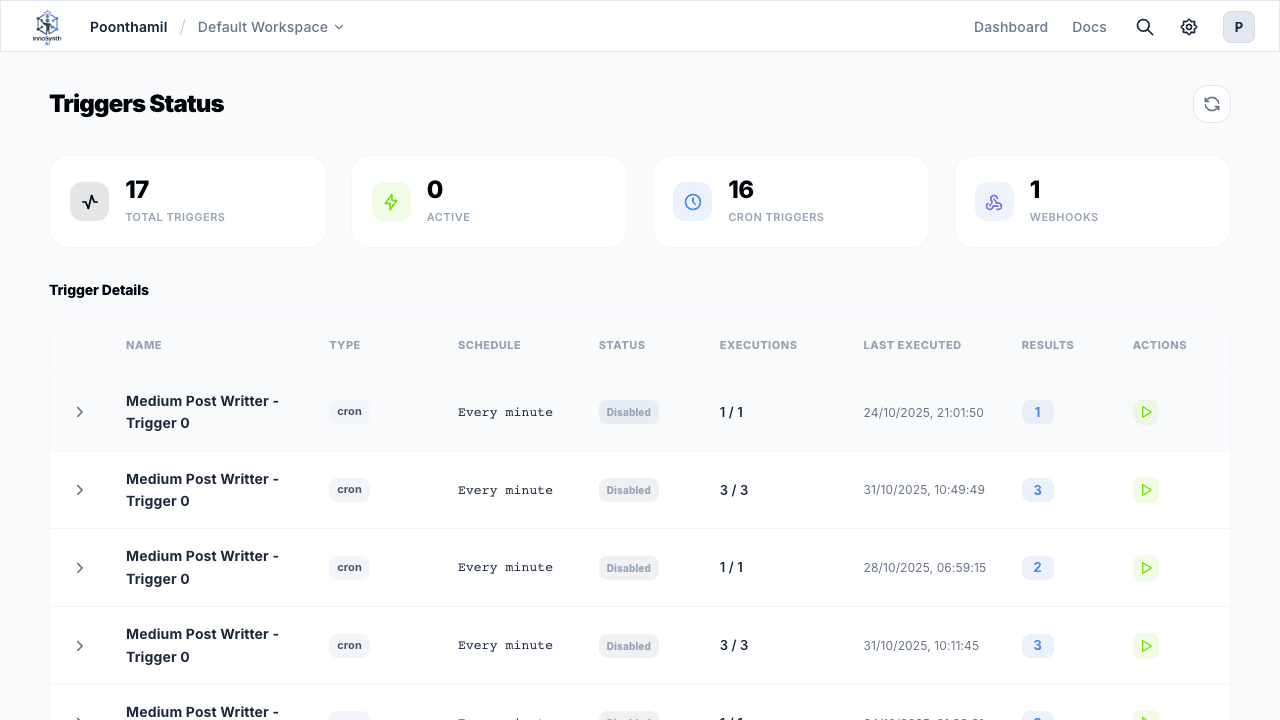
The Forjinn Trigger System enables automatic workflow execution through time-based (cron) and event-driven (webhook) triggers. Configure triggers to start workflows without manual intervention, integrating with 30+ platforms for event-driven automation.
Overview
Triggers serve as entry points for workflows, automatically starting execution based on:
- Time-based schedules — Cron expressions for recurring execution
- External events — Webhooks from supported platforms and services
Trigger Types
Cron Schedule Triggers
Time-based triggers execute workflows on a recurring schedule using cron expressions.
Predefined Schedules
| Schedule | Cron Expression | Description |
|---|---|---|
| Every Minute | * * * * * | Runs every minute |
| Hourly | 0 * * * * | Runs at the top of every hour |
| Daily | 0 9 * * * | Runs daily at 9 AM UTC |
| Weekly | 0 9 * * 1 | Runs every Monday at 9 AM UTC |
| Monthly | 0 9 1 * * | Runs on the 1st of every month at 9 AM UTC |
| Custom | User-defined | Any valid cron expression |
Configuration
- Add a Trigger node to your workflow canvas
- Set Trigger Type to "Cron Schedule"
- Choose a predefined schedule or enter a custom cron expression
- Optionally set a Trigger Message — text passed to the workflow on execution
- Configure Max Executions — optional limit on total runs
- Set Timeout — maximum execution time in seconds
- Toggle Enabled on to activate the trigger
trigger:
  type: "cron"
  schedule: "daily"
  cronExpression: "0 9 * * *"
  triggerMessage: "Generate daily report"
  maxExecutions: 30
  timeout: 300
  enabled: true
Webhook Triggers
Webhook triggers respond to HTTP POST events from external platforms. When a configured event occurs, the external service sends a payload to your webhook URL, triggering workflow execution.
Supported Platforms
Communication & Collaboration
- Slack, Discord, Microsoft Teams
- Gmail, Outlook
Development & Project Management
- GitHub, GitLab, Jira, Trello
- Asana, Monday.com, Notion
E-commerce & Payments
- Shopify, WooCommerce
- Stripe, PayPal
Marketing & CRM
- HubSpot, Salesforce
- Mailchimp, SendGrid, Zendesk
Forms & Social
- Typeform, Google Forms, Calendly
- Facebook, Twitter/X, LinkedIn
Storage & Data
- Dropbox, Google Drive, OneDrive
- Airtable, Google Sheets
Webhook Configuration
- Add a Trigger node to your workflow canvas
- Set Trigger Type to "Webhook"
- Select the Webhook Platform from the dropdown
- Specify Event Types — which events should trigger execution
- Enter the Webhook Secret — for signature validation
- Copy the generated Webhook URL — configure this in your external platform
- Optionally set Custom Headers for additional security
- Toggle Enabled on to activate
How Webhook Triggers Work
- You configure a webhook trigger in your Forjinn workflow
- Forjinn generates a unique webhook URL for your trigger
- You configure this URL in the external platform (e.g., GitHub repository settings)
- When an event occurs, the platform sends an HTTP POST to your webhook URL
- Forjinn validates the request signature and headers
- If valid, your workflow executes with the webhook payload as input
Security
Signature Verification
Each platform uses specific validation to ensure webhook authenticity:
GitHub:
const signature = req.headers['x-hub-signature-256']
const expectedSignature = crypto
  .createHmac('sha256', secret)
  .update(payload)
  .digest('hex')
Slack:
const timestamp = req.headers['x-slack-request-timestamp']
const signature = req.headers['x-slack-signature']
const baseString = `v0:${timestamp}:${payload}`
const expectedSignature = crypto
  .createHmac('sha256', secret)
  .update(baseString)
  .digest('hex')
Stripe:
const signature = req.headers['stripe-signature']
const elements = signature.split(',')
const timestamp = elements.find(e => e.startsWith('t=')).split('=')[1]
const signatures = elements.filter(e => e.startsWith('v1='))
Best Security Practices
- Always use webhook secrets for external platforms
- Validate signatures on every incoming request
- Use custom headers for additional authentication layers
- Test webhook security in development before production deployment
API Endpoints
| Method | Endpoint | Description |
|---|---|---|
| POST | /api/v1/triggers | Create a new trigger |
| GET | /api/v1/triggers | List all triggers |
| GET | /api/v1/triggers/:id | Get a specific trigger |
| PUT | /api/v1/triggers/:id | Update a trigger |
| DELETE | /api/v1/triggers/:id | Delete a trigger |
| POST | /api/v1/triggers/webhook/:nodeId | Webhook receiver endpoint |
| GET | /api/v1/triggers/stats | Get trigger statistics |
Troubleshooting
Common Issues
| Problem | Solution |
|---|---|
| Cron trigger not executing | Verify cron expression syntax; check trigger is enabled |
| Webhook validation failing | Verify secret key matches; check signature format for the platform |
| Trigger not found | Ensure trigger is properly configured and saved |
| Execution limits reached | Check and adjust maxExecutions setting |
| Payload not received | Verify webhook URL is correct in the external platform; check event type matches |
Debug Steps
- Check trigger status in the Forjinn Settings → Triggers page
- Verify webhook URL configuration in the external platform
- Test signature validation with a sample payload
- Review server logs for trigger execution errors
- Validate cron expression using an online cron parser
Best Practices
- Use Execution Limits — Set
maxExecutionsfor cron triggers to prevent runaway schedules - Enable Signature Verification — Always use webhook secrets for production triggers
- Test in Development — Validate trigger behavior before deploying to production workflows
- Monitor Execution — Review trigger statistics regularly for health and performance
- Handle Errors Gracefully — Build error handling into workflows triggered by external events
- Document Configurations — Keep trigger settings documented for team reference
Related Documentation
- Settings → Triggers — Trigger management in settings
- API Gateway — API-level integration
- Google & Microsoft Integrations — Connected services
- Overview — Forjinn platform builder modes