
WhatsApp Integration Overview - Connect Forjinn AI Agents to WhatsApp
Complete guide to WhatsApp gateway provisioning in Forjinn. Connect AI agents to WhatsApp Messenger, configure webhooks, manage message templates, and verify phone numbers.
WhatsApp Integration
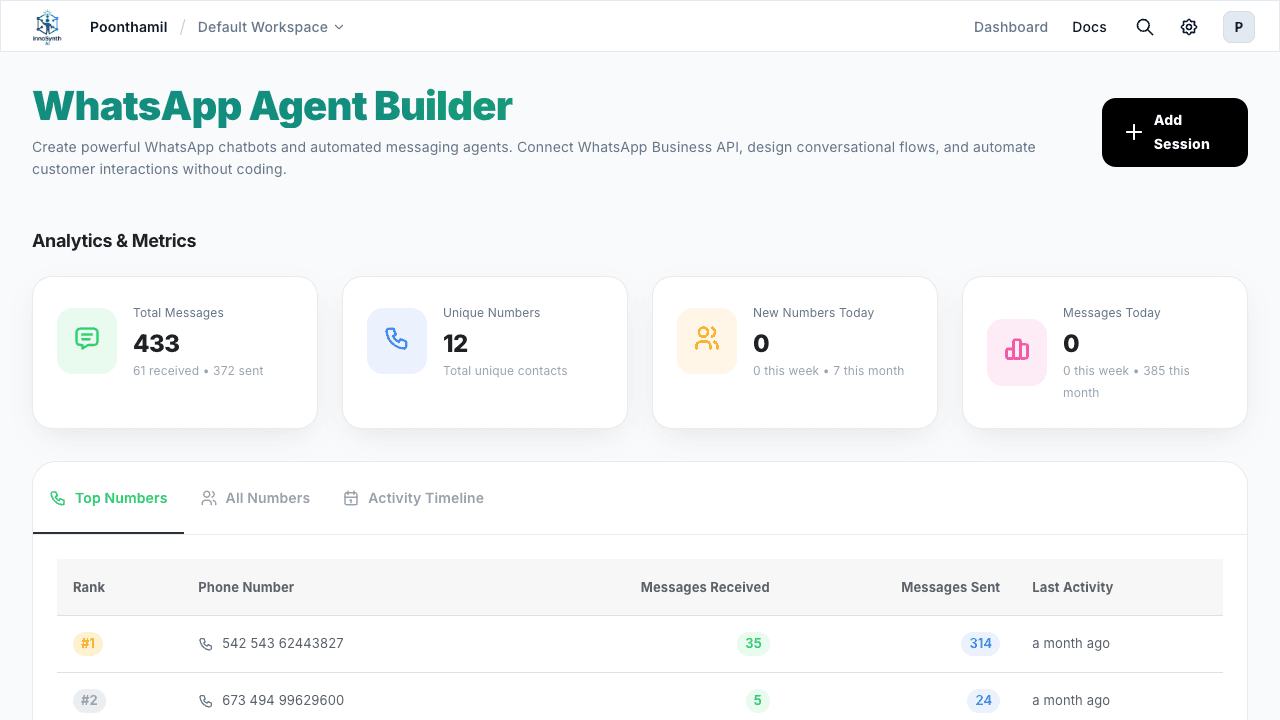
The WhatsApp page at /whatsapp provides WhatsApp gateway provisioning, enabling you to connect Forjinn AI agents and chatflows directly to WhatsApp Messenger. Through this integration, your agents can receive and send messages via WhatsApp, turning any chatflow or agentflow into a conversational interface accessible to your end users on WhatsApp.
What WhatsApp Integration Does
The WhatsApp integration in Forjinn acts as a messaging gateway between the WhatsApp Business API and your Forjinn workflows. Key capabilities include:
- Bidirectional Messaging — Receive incoming WhatsApp messages and send replies through your chatflows and agentflows
- Gateway Provisioning — Set up and manage WhatsApp Business API connections from within Forjinn
- Flow-to-WhatsApp Binding — Attach any existing chatflow or agentflow to a WhatsApp number
- Message Template Management — Create, submit, and track WhatsApp-approved message templates for outbound communications
- Webhook Handling — Automatically route incoming WhatsApp messages to your configured flows
- Phone Number Verification — Verify and manage WhatsApp Business phone numbers through the platform
Setting Up WhatsApp Business API Connection
Before connecting Forjinn to WhatsApp, you need access to the WhatsApp Business API. There are two paths:
Option 1: Facebook Cloud API (Recommended)
- Create a Meta Developer account at developers.facebook.com
- Create a WhatsApp Business application
- Obtain your WhatsApp API access token and phone number ID
- In Forjinn, navigate to
/whatsappand select Facebook Cloud API as your provider - Enter your API token, phone number ID, and business account ID
- Click Verify Connection to test the API credentials
Option 2: Third-Party Provider (e.g., Twilio, MessageBird)
- Sign up with a WhatsApp Business API provider
- Obtain provider-specific credentials (API key, WhatsApp SID, etc.)
- In Forjinn, select your provider from the gateway configuration dropdown
- Enter the required credentials and verify the connection
Gateway Configuration
Once connected, the gateway section lets you configure how messages flow between WhatsApp and Forjinn:
| Setting | Description |
|---|---|
| Gateway Status | Shows whether the WhatsApp gateway is active or inactive |
| Phone Number | The verified WhatsApp Business number handling messages |
| Webhook URL | The Forjinn endpoint that receives incoming WhatsApp messages |
| Verify Token | A secret token used by WhatsApp to validate webhook requests |
| Message Flow | The default chatflow or agentflow assigned to incoming messages |
| Session Timeout | How long a WhatsApp conversation session remains active (default: 24 hours) |
Configuring the Gateway
- Navigate to
/whatsappfrom the sidebar - Under Gateway Settings, fill in your webhook configuration details
- Set a default message flow for incoming messages
- Configure session timeout based on your use case
- Save and activate the gateway
Phone Number Verification
WhatsApp requires phone number verification before you can send messages. Forjinn streamlines this process:
- Enter the phone number you want to verify in the WhatsApp settings page
- Select your verification method (SMS code or voice call)
- Enter the verification code received on your phone
- Wait for Meta to approve the number — this typically takes a few minutes
- Once approved, the number will show as Verified in the gateway status
Verification Requirements
- The phone number must not already be registered on the WhatsApp consumer app
- You need access to receive SMS or calls on the number
- The number must comply with WhatsApp's Business policy
- Some countries may require additional business documentation
Connecting Chatflows and Agentflows to WhatsApp
Once your gateway is active, you can bind any chatflow or agentflow to WhatsApp:
Binding a Flow
- Go to
/whatsappand navigate to the Flow Connections section - Click Connect Flow
- Select the chatflow or agentflow you want to connect from the dropdown
- Optionally set routing rules (e.g., connect specific flows based on incoming message keywords)
- Save the connection
How Messages Route
When a user sends a message on WhatsApp:
- WhatsApp delivers the message to the Forjinn webhook endpoint
- Forjinn looks up the connected flow for that WhatsApp number
- The user's message is passed as input to the chatflow or agentflow
- The flow processes the message through its configured nodes
- The final response is sent back to WhatsApp and delivered to the user
Multiple Flows per Number
You can configure keyword-based routing to direct messages to different flows from the same WhatsApp number. For example, messages starting with /support could route to a customer support flow, while /sales routes to a sales assistant flow.
Message Templates and Approvals
WhatsApp requires pre-approved message templates for outbound messages initiated by the business (i.e., messages not responding to a user within the 24-hour session window).
Creating Templates
- Navigate to the Message Templates section under
/whatsapp - Click Create Template
- Provide a template name (internal reference)
- Compose the message body, supporting variables in {{1}}, {{2}} format
- Select the message category (Utility, Marketing, Authentication, or Issue Alert)
- Optionally add header, body, and footer components
- Submit for Meta approval
Template Approval Process
-Templates are reviewed by Meta and typically approved within a few hours to 24 hours
- Rejected templates include feedback — revise and resubmit as needed
- Approved templates appear with an Active status in Forjinn
- You can use approved templates from LLM nodes and HTTP nodes in your flows by calling the WhatsApp template message API
Template Best Practices
- Keep templates concise and clear
- Use variables ({{1}}, {{2}}) only for dynamic content like names or order numbers
- Ensure templates comply with WhatsApp's messaging policy
- Maintain multiple language versions if targeting international audiences
- Review template performance and update based on user engagement
Webhook Setup for Incoming Messages
The webhook is the bridge that delivers incoming WhatsApp messages to Forjinn. Forjinn auto-generates webhook endpoints, but you need to register them with WhatsApp.
Auto-Configured Webhook
When you activate the WhatsApp gateway in Forjinn:
- A unique webhook URL is generated (e.g.,
https://api.forjinn.app/webhooks/whatsapp/YOUR_ID) - A verification token is created automatically
- Forjinn handles the webhook verification challenge from Meta
Manual Webhook Registration
If using a third-party provider or custom setup:
- Copy your webhook URL from the Forjinn WhatsApp settings page
- In your Meta Developer Dashboard or provider console, navigate to Webhooks configuration
- Enter the Forjinn webhook URL
- Set the
verify_tokento match what's shown in Forjinn - Subscribe to the
messagesfield - Save and verify the webhook connection
Webhook Events
Forjinn listens for the following WhatsApp webhook events:
| Event | Description |
|---|---|
message | Incoming text, image, document, audio, or video message from a user |
status | Delivery and read receipts for sent messages |
message_template_status | Approval status updates for submitted templates |
opt_in | User consent events for opt-in CTAs |
Testing WhatsApp Connections
After setup, it's important to verify that the entire pipeline works end to end.
Quick Connection Test
- From the WhatsApp settings page, click Test Connection
- Forjinn will send a test message to the configured WhatsApp number
- Check that the message is received on the WhatsApp app
- Reply to the test message and verify it appears in your flow's execution logs
End-to-End Flow Test
- Send a message to your WhatsApp Business number from a personal WhatsApp account
- Monitor the flow execution in Forjinn — go to Settings > Executions to see real-time runs
- Verify that the flow processes the message correctly and returns a response
- Check that the response appears in WhatsApp within a few seconds
Webhook Testing
Use the Webhook Logs section to inspect incoming webhook payloads:
- Verify that message events are arriving
- Check for any error responses from the webhook endpoint
- Inspect payload structure to ensure message content maps to flow inputs correctly
Troubleshooting Common Issues
Connection Fails Verification
- Cause: Invalid API token, expired credentials, or wrong phone number ID
- Fix: Regenerate your WhatsApp API token from Meta Developer Dashboard. Ensure the token has the
whatsapp_business_messagingandwhatsapp_business_managementscopes. Double-check that your phone number ID matches the verified number.
Messages Not Reaching the Flow
- Cause: Webhook not registered, incorrect webhook URL, or flow not connected to the WhatsApp number
- Fix: Verify the webhook URL in Meta Developer Dashboard matches the one shown in Forjinn. Check that a flow is connected under the Flow Connections section. Review webhook logs for error responses.
Template Rejected by Meta
- Cause: Template violates WhatsApp messaging policy, uses unsupported formatting, or has invalid variable placement
- Fix: Review Meta's rejection reason. Common issues include using template variables for entire sentences, including unsupported buttons, or using marketing language in utility templates. Revise and resubmit.
24-Hour Session Window Expired
- Cause: Trying to send a message to a user outside the 24-hour interactive session window without using an approved template
- Fix: Use an approved message template to initiate conversations after the 24-hour window. Templates always require a small per-conversation fee charged by Meta.
Webhook Returns 403 or 401
- Cause: Verify token mismatch or expired API credentials
- Fix: Ensure the
verify_tokenin Meta Developer Dashboard matches your Forjinn configuration. If using a cloud API token, check that it hasn't expired and regenerate if necessary.
Phone Number Not Verified
- Cause: Meta's number verification is still pending, or the verification code was incorrect
- Fix: Wait for Meta's verification process to complete (usually a few minutes). If it fails, request a new verification code and try again. Ensure the number isn't already active on the WhatsApp consumer app.
Related Resources
- Chatflows — Learn how to build chatflows that can be connected to WhatsApp
- Agent Types — Understand the different agent configurations available for WhatsApp integration
- Tools — Register custom tools that your WhatsApp-connected agents can use
- Credentials — Manage API keys needed for WhatsApp and other external services
- Executions — Monitor real-time flow executions triggered by WhatsApp messages
- Web Search Agent — Example of an agent that can be connected to WhatsApp for user queries
- WhatsApp Business Platform Documentation — Official Meta documentation for the WhatsApp Business API