
AutoGen: Automated Generative Workflows | Forjinn
Build automated generative workflows with AutoGen on Forjinn. Agents that generate code, fix errors, write documentation, and orchestrate multi-step tasks through conversational AI.
AutoGen: Automated Generative Workflows
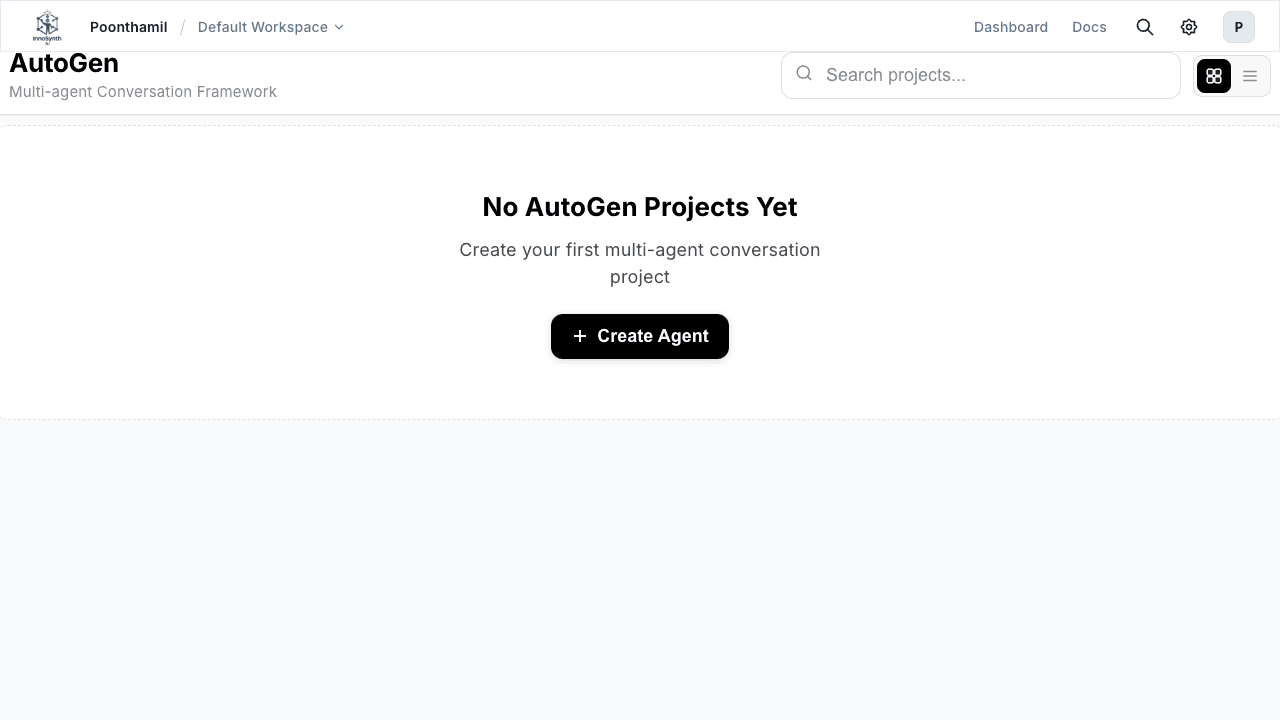
AutoGen is Forjinn's framework for building automated generative workflows. It enables AI agents to generate, test, fix, and document code or content through structured conversations and orchestrated multi-agent patterns.
This is marked as a New feature on the Forjinn dashboard.
Overview
AutoGen on Forjinn provides:
- Automated Code Generation — Generate Python, JavaScript, Bash, SQL, and more
- Code Repair and Refactoring — Fix errors, improve quality, and update legacy code
- Documentation Generation — Create READMEs, API docs, and inline comments automatically
- Agent Conversations — Multi-agent orchestration through structured dialogues
- Code Execution — Run generated code in sandboxed environments
- Self-Correction Loops — Agents that test, identify failures, and fix their own output
What is AutoGen?
AutoGen enables AI agents to engage in multi-turn conversations to solve complex tasks. Rather than a single prompt-response interaction, AutoGen agents:
- Discuss a problem through structured conversations
- Generate solutions iteratively
- Execute code in safe environments
- Evaluate results against criteria
- Self-correct by refining based on feedback
This conversational approach allows agents to tackle tasks that require multiple steps, reasoning, validation, and iteration — all without human intervention.
Getting Started with AutoGen in Forjinn
Accessing the AutoGen Builder
- Navigate to AutoGen from your Forjinn dashboard (marked as "New")
- Click "Create New Workflow" to start building
- The AutoGen canvas opens with agent and tool configuration panels
Building Your First AutoGen Workflow
- Add an AutoGen Node — Drag a CodeGenAgent, CodeWriter, CodeRepair, or DocGenAgent from the component library
- Write the Prompt — Describe what you want the agent to generate (e.g., "Write a Python function that validates email addresses")
- Set Output Options — Choose code type, format, and whether to include test cases or documentation
- Connect Follow-Up Nodes — Link to evaluation, testing, or human review nodes
- Save and Run — Execute the workflow and review results in the output panel
Workflow Example: DevOps Automation
- User asks: "Generate a bash script to back up PostgreSQL with gzip compression"
- AutoGen Node: Generates the script code and explains usage
- Evaluator Node: Checks syntax and optionally runs in a sandbox
- Output Node: Delivers the ready-to-use script or reports actionable errors
Building AutoGen-Based Workflows
Agent Types
AutoGen provides specialized agent types:
| Agent | Purpose | Capabilities |
|---|---|---|
| CodeGenAgent | Generate programming code | Python, JS, Bash, SQL, Go, Rust, and more |
| CodeRepairAgent | Fix code errors | Syntax repair, bug fixing, refactoring |
| DocGenAgent | Generate documentation | README files, API docs, inline comments |
| TestGenAgent | Create test cases | Unit tests, integration tests, test fixtures |
| ConversationAgent | Multi-turn dialogue | Discusses problems, negotiates solutions |
| UserProxyAgent | Human-in-the-loop | Reviews output, provides feedback, approves actions |
Multi-Agent Patterns
AutoGen excels at orchestrating conversations between multiple agents:
Code Generation + Review
CodeGenAgent → generates code
      ↓
CodeRepairAgent → identifies issues, suggests fixes
      ↓
CodeGenAgent → produces corrected version
      ↓
UserProxyAgent → human review and approval
Full Development Pipeline
DocGenAgent → writes requirements from prompt
      ↓
CodeGenAgent → generates implementation code
      ↓
TestGenAgent → creates test cases
      ↓
CodeRepairAgent → fixes any test failures
      ↓
DocGenAgent → generates final documentation
Code Execution with AutoGen
AutoGen supports running generated code in safe environments:
- Sandboxed Execution — Code runs in isolated containers
- Language Support — Python, JavaScript, Bash, SQL, and more
- Output Capture — Stdout, stderr, and return values collected
- Resource Limits — CPU, memory, and timeout constraints enforced
- Error Feedback — Execution errors fed back to agents for self-correction
Self-Correction Loops
AutoGen agents can improve their own output through iterative refinement:
Round 1: Agent generates code → Tests fail
Round 2: Error message fed back → Agent fixes code
Round 3: Tests pass → Agent generates documentation
Configure loop parameters:
- Max iterations — Limit refinement cycles
- Convergence criteria — Define when output is acceptable
- Feedback sources — Tests, linting, or human review
Agent Conversations and Orchestration
Conversation Patterns
AutoGen agents communicate through structured conversations:
- Two-Agent Chat — A conversational agent and a user proxy discuss a task
- Group Chat — Multiple agents collaborate in a shared discussion
- Sequential Chat — Agents pass context in a predefined order
- Hierarchical Chat — A manager agent delegates to specialist agents
Group Chat Configuration
group_chat:
  name: "Code Review Team"
  participants:
    - CodeGenAgent
    - CodeRepairAgent
    - TestGenAgent
    - DocGenAgent
  admin: "SupervisorAgent"
  max_rounds: 10
  speaker_selection: "round_robin"
  allow_repeated_speaker: false
Termination Conditions
Conversations end when:
- Max rounds reached
- Specific keyword detected in output (e.g., "TERMINATE")
- All tasks completed successfully
- User approval obtained
- Timeout exceeded
Testing and Deployment
Testing AutoGen Workflows
- Canvas Testing — Run workflows interactively on the AutoGen builder canvas
- Step Tracing — View each agent's inputs, reasoning, and outputs
- Conversation Logs — Review full multi-agent dialogue histories
- Execution sandbox — Test generated code safely before deployment
- Output validation — Verify results against expected criteria
Deployment Options
| Mode | Description | Use Case |
|---|---|---|
| Canvas | Interactive builder environment | Development and testing |
| API | HTTP endpoints for workflows | Integration with other systems |
| Scheduled | Cron-based execution | Automated daily/weekly tasks |
| Webhook | Event-triggered execution | Real-time integration |
| Embedded | Chat widget or API | End-user facing applications |
Best Practices
Prompt Engineering
- Be specific — Clearly state language, framework, and expected output format
- Provide context — Include background information, constraints, and examples
- Use structured output — Request JSON schemas or specific formats when needed
- Break down complexity — Split large tasks into smaller agent-focused prompts
Workflow Design
- Limit max iterations — Prevent runaway self-correction loops
- Use human-in-the-loop — Add UserProxyAgent for critical decisions
- Sandbox code execution — Never run unverified code in production environments
- Monitor conversation length — Set appropriate max rounds for group chats
- Validate outputs — Include test generation or code review agents in pipelines
Troubleshooting
| Issue | Solution |
|---|---|
| Output cut off | Increase max tokens or split prompts into smaller steps |
| Non-compiling code | Rephrase prompt for clarity; add "include test case" instruction |
| Poor formatting | Use structured output features; provide examples in the prompt |
| Agent hangs | Set conversation timeouts and max round limits |
| Repeated errors | Add a CodeRepairAgent to the conversation loop |
Related Documentation
- Multi-Agent Systems — Architecture patterns
- CrewAI Integration — Alternative multi-agent framework
- Google ADK — Google's agent development kit
- Custom Python Tools — Extending agent capabilities
- Overview — Forjinn platform builder modes